
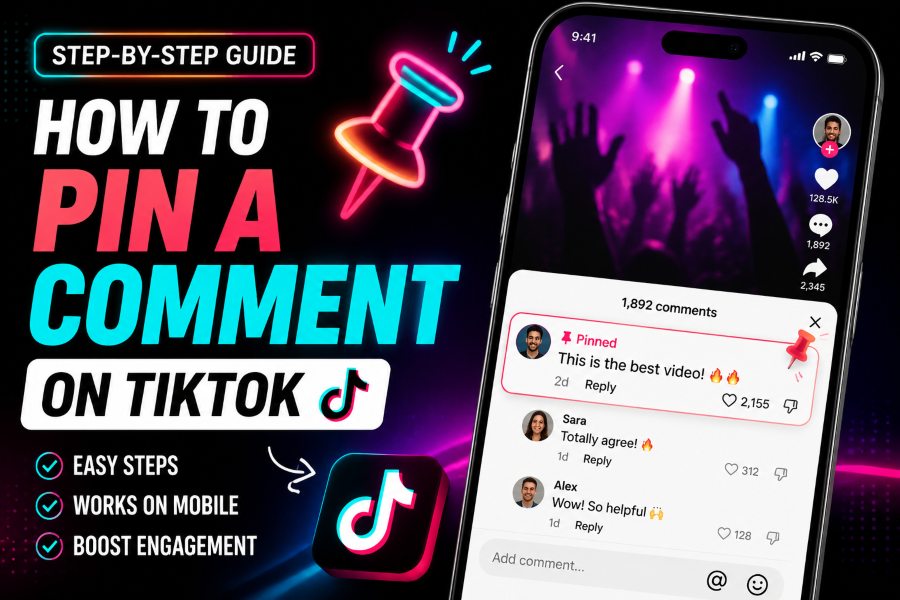
On TikTok accounts where comment pinning is available, open your own video, tap the comments icon, press and hold the comment you want to highlight, and choose Pin comment. The selected comment moves to a prominent position in the discussion. To change it, press and hold the pinned comment and choose Unpin, or pin a different comment if the app offers that option.
Feature availability can vary by account, region, app version, post type, and TikTok rollout. TikTok’s current official comment-management documentation focuses on who can comment, filters, approvals, and deletion, and the pin option may not appear for every user. If the menu does not show Pin comment, there is no universal setting that guarantees you can force-enable it.
Why Pin a TikTok Comment?
A useful comment can disappear quickly when a video receives hundreds of replies. Pinning gives the creator a way to place context, a correction, a frequently asked question, a funny reaction, or a strong piece of community feedback near the top of the conversation.
The best pinned comments improve the viewing experience. They answer something the caption missed, clarify a misunderstanding, credit a collaborator, or encourage a relevant discussion. A pinned comment should support the video rather than distract from it.
How to Pin a Comment on Your TikTok Video
First, open the TikTok mobile app and make sure you are signed into the account that published the video. Go to Profile, open the relevant post, and tap the comments button. Find the comment you want to highlight.
Press and hold the comment until the action menu appears. If your account has the feature, tap Pin comment. TikTok should move the comment into the highlighted position and display a pin indicator. The exact wording, icon, and position can change with app updates.
Only the creator or an account with the necessary moderation control can manage a video’s highlighted comment. You cannot normally pin a comment on another creator’s standard video.
How to Pin Your Own Comment
You can first post a comment under your own video, then press and hold it and select Pin comment when the option is available. Creators often use their own comment to add context, answer the most common question, correct a mistake, or point viewers toward the next step.
Keep the wording short because viewers scan comments quickly. A direct sentence such as “Part two is on my profile” or “The full ingredient list is below” is more useful than a long promotional paragraph. Avoid misleading claims or spammy calls to action.
How to Unpin or Replace a Comment
Open the video’s comment section and press and hold the pinned comment. Choose Unpin comment if the option is shown. The comment remains in the discussion unless you delete it; it simply loses the highlighted placement.
If TikTok allows one highlighted comment in your current interface, pinning another may replace the earlier choice. Review the final result after making the change, especially on a fast-moving video where the selected comment could have been edited or deleted by its author.
Why the Pin Comment Option May Be Missing
The most common reason is feature availability. TikTok frequently tests and rolls out tools to selected accounts, locations, or app versions. A tutorial recorded on another phone may show an option that is not present on yours. The feature may also behave differently for regular videos, photo posts, promoted content, and LIVE interactions.
You may be viewing someone else’s video rather than your own, using TikTok in a desktop browser, signed into the wrong account, or holding a comment that your current interface does not allow you to manage. An outdated app, temporary bug, cached interface problem, age-related setting, or restricted account state can also affect available controls.
Finally, the option may have been removed or changed for your account. Because TikTok’s official help pages currently document comment permissions and moderation without promising universal comment pinning, the absence of the button should be treated as an availability issue rather than a hidden setting you missed.
Troubleshooting Steps
Update TikTok through the Apple App Store or Google Play Store, close the app completely, and reopen it. Confirm that you are logged into the creator account and testing on a video that account posted. Try another recent video and another comment to rule out a post-specific issue.
Restart the phone and check your connection. In TikTok settings, clear cache if the option is available, but understand that clearing cache does not delete your account or guarantee access to an unavailable feature. Avoid uninstalling the app before saving drafts because locally stored drafts may be lost.
If the option should be present but remains missing, use Settings and privacy, Report a problem, and the comments category to describe the issue. Include your device, app version, and a screenshot of the long-press menu.
Use Comment Controls When Pinning Is Unavailable
Even without a pin button, you can manage the quality of the discussion. TikTok lets users decide who can comment, turn comments on or off for individual posts, filter unwanted comments, filter selected keywords, and review comments held for approval. Creator Care Mode may also help hide comments that appear inappropriate, offensive, or connected to earlier moderation signals.
To find these controls, go to Profile, open the menu, choose Settings and privacy, then Privacy and Comments. Available options vary, but the goal is to prevent spam and abuse from overwhelming useful replies.
For a broader look at quiet moderation tools on another platform, read what happens when you restrict someone on Instagram. Instagram restriction changes comments, messages, and activity signals without sending a direct notification.
Smart Types of Comments to Highlight
Pin a clear answer to the question viewers ask most. This saves time and reduces duplicate replies. Highlight a helpful correction when a video contains outdated or incomplete information. Pin a thoughtful viewer contribution that adds expertise, context, or a useful personal experience.
Positive feedback can create social proof, but choose comments that sound genuine and specific. A funny comment works when humor matches the video’s tone and does not target or embarrass another person. For a series, highlight where viewers can find the next part or related post.
Avoid pinning private information, unverified accusations, medical or financial claims you cannot support, or comments that encourage harassment. A prominent comment can shape the entire discussion, so treat it like part of the original post.
Can You Pin More Than One Comment?
The number of highlighted comments depends on TikTok’s current interface and rollout. Some versions have historically limited creators to a single pinned comment on a standard post. Do not build a content strategy around a fixed limit without checking the app, because platform rules can change.
When only one slot is available, choose the comment with the greatest value for most viewers. Update it as the conversation changes. A launch announcement may be useful on day one, while an answer to a recurring question may be more useful later.
Does TikTok Notify Someone When You Pin Their Comment?
Notification behavior can change, and users may still notice the pin icon when they revisit the video. Do not assume that highlighting a comment is private. Treat the action as public moderation and choose comments you are comfortable featuring openly.
If a viewer deletes their own comment, the highlighted content may disappear. For information that must remain available, post and highlight your own comment when the feature is supported.
Pinning Comments on TikTok LIVE
LIVE moderation controls are separate from standard video comments and can vary by role, region, and interface. During a LIVE, creators and moderators may have tools to manage, mute, filter, or highlight chat activity. Tap or hold a comment to see the actions available in your current LIVE dashboard.
Do not rely on a standard-video tutorial for LIVE. Before an important broadcast, test your moderator roles, blocked keywords, comment permissions, and available highlighting tools. A prepared moderator can repeat essential information in chat when a persistent pinned message is not supported.
Comment Pinning and Engagement Strategy
A pinned comment is not a guaranteed ranking boost. It can improve the conversation by directing attention, but strong performance still depends on the video, audience response, watch behavior, relevance, and many other signals. Avoid claims that pinning within a particular number of minutes automatically pushes a video onto the For You feed.
Use the comment as a service to viewers. Answer, clarify, credit, summarize, or invite a meaningful response. This creates a better reason for people to participate than a generic request for likes.
For content-discovery strategy beyond TikTok, Buzzetra’s guide asking is Pinterest a search engine explains why keywords and visual relevance play a major role in how ideas are found on Pinterest.
How to Write a Strong Pinned Comment
Start with the single piece of information that will help the largest number of viewers. A good pinned comment often answers who, what, where, or when in one or two sentences. If viewers keep asking for a product name, recipe measurement, location, source, or part-two link, place that answer first instead of beginning with a generic greeting.
Match the tone of the video. A comedy post can use a witty comment, while an educational post should prioritize accuracy and clarity. Avoid all-caps wording, excessive emojis, and long hashtag strings that make the comment feel like an advertisement. The highlighted position already attracts attention; the writing does not need to shout.
Add a call to action only when it fits the viewer’s next step. Ask a specific question such as “Which method should I test next?” rather than “Comment below.” When sending viewers to another post, identify it clearly so they can find it even if links are not clickable in their interface.
Review the pinned comment after the video begins receiving traffic. A joke that worked with the first audience may confuse later viewers, and an early answer can become outdated after you publish a correction. Replace the comment when a more useful question or clarification emerges.
Check the Result From a Viewer’s Perspective
After highlighting a comment, reopen the post and read the video, caption, and pinned reply as one piece of content. Make sure the comment is accurate, understandable without extra context, and not covering a more urgent correction. Review it again when the video reaches a new audience or when circumstances change. Comment moderation is ongoing; a useful pinned message today can become confusing or outdated next week.
Related Buzzetra Guides
- How to See Who Is Stalking Your Facebook Profile
- What Happens When You Restrict Someone on Instagram?
- What Is LinkedIn Sales Navigator?
- Is Pinterest a Search Engine?
Frequently Asked Questions
Can anyone pin a comment on TikTok?
Normally, comment-management actions belong to the creator of the video or an authorized moderator in the relevant experience. You cannot usually pin a comment on another person’s standard video.
Why can’t I pin a TikTok comment?
The feature may not be available for your account, region, device, app version, or post type. Confirm that you own the video, update the app, and report the issue if the option is unexpectedly missing.
Can I pin my own comment?
On accounts with comment pinning, you can generally post your own comment and then use the same long-press menu to highlight it.
Will unpinning delete the comment?
No. Unpinning normally removes the highlighted placement but leaves the comment in the discussion. Deleting is a separate action.
Can I pin comments from TikTok on desktop?
Desktop and mobile controls are not always identical. Use the mobile app when the browser interface does not show the option, and check the current action menu on your account.
Final Takeaway
To learn how to pin a comment on TikTok, start with the mobile app: open your own video, enter the comments, press and hold a comment, and select Pin comment when available. If the option is missing, update and troubleshoot the app, but recognize that TikTok may not provide the feature to every account. You can still create a healthy discussion through comment permissions, keyword filters, approvals, deletion, and careful replies.